Oasis Select
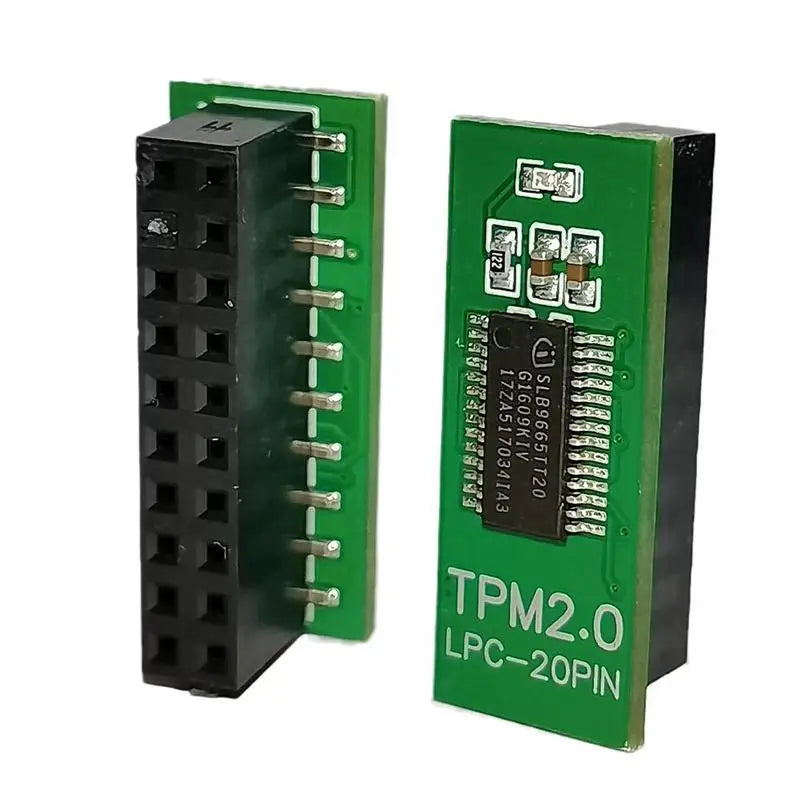
TPM 2.0 Module 12/14/18/20 Pin LPC – ASUS MSI Gigabyte ASRock
TPM 2.0 Module 12/14/18/20 Pin LPC – ASUS MSI Gigabyte ASRock
Couldn't load pickup availability
Upgrade Your Motherboard Security with TPM 2.0
Take control of your PC's hardware-level security with this TPM 2.0 (Trusted Platform Module) LPC Security Module. Designed to integrate seamlessly with popular motherboard brands — ASUS, MSI, Gigabyte, and ASRock — this module enables encrypted data storage, secure boot processes, and hardware-based cryptographic key management. It's an essential upgrade for anyone running or planning to run Windows 11, which requires TPM 2.0 compliance.
Available in 12-pin, 14-pin, 18-pin, and 20-pin configurations, this module is compatible with a wide range of Intel and AMD DDR4 motherboard platforms. CE certified for quality assurance. Made in Mainland China.
Key Features
- ✅ TPM 2.0 Standard — Meets Microsoft Windows 11 hardware security requirements
- ✅ Multi-Pin Support — Available in 12-pin, 14-pin, 18-pin, and 20-pin LPC configurations
- ✅ Broad Compatibility — Supports ASUS, MSI, Gigabyte, and ASRock motherboards
- ✅ Hardware Encryption — Enables cryptographic key generation, storage, and secure authentication
- ✅ CE Certified — Meets European conformity standards
- ✅ Easy Installation — Plugs directly into your motherboard's dedicated TPM header
Compatibility Checklist — Before You Order
Please verify compatibility with your motherboard before purchasing.
-
Step 1 – Identify Your Motherboard's CPU Platform:
- Intel Platform: Check the number in your motherboard model. Any number equal to or greater than 99 is supported (e.g., ASUS X99).
- AMD Platform: Your motherboard must support DDR4 memory. DDR3 AMD boards (e.g., MSI 970A-G43) are not compatible.
- Step 2 – Confirm Your TPM Header Pin Count: Locate the TPM header on your motherboard (typically near or above the PCIe slot area) and identify whether it is a 12-pin, 14-pin, 18-pin, or 20-pin connector. Select the matching module variant.
Example: ASUS B450-M — This is an AMD DDR4 board, so it is fully compatible.
Specifications
| Standard | TPM 2.0 |
| Interface | LPC (Low Pin Count) |
| Pin Configurations | 12-pin / 14-pin / 18-pin / 20-pin |
| Compatible Brands | ASUS, MSI, Gigabyte, ASRock |
| Certification | CE |
| Origin | Made in Mainland China |
What's in the Box?
- 1× TPM 2.0 LPC Security Module
Related Products You May Like
- 1-Channel Relay Module DC 3.3V–24V Optocoupler for Arduino
- 0.25mm 1000-Turn Precision Copper Inductor Coil for DIY Circuits
- 1-Channel SCR Solid State Relay Module DC3-24V 40A Optocoupler
For more information on hardware security and trusted platform modules, visit the NIST Trusted Platform Module publications page.
Learn more: Motherboard
Frequently Asked Questions
Q: What is a TPM 2.0 module and why do I need one?
A: A TPM 2.0 (Trusted Platform Module 2.0) is a dedicated hardware chip that handles cryptographic operations such as generating, storing, and managing encryption keys. It provides hardware-based security for features like BitLocker drive encryption and secure boot. It is also a mandatory hardware requirement for running Windows 11.
Q: How do I know which pin configuration (12-pin, 14-pin, 18-pin, 20-pin) my motherboard uses?
A: Check your motherboard manual or look physically at the TPM header on your motherboard — it is typically labeled "TPM" and located near or above the primary PCIe x16 slot. Count the number of pins on the header and select the matching module variant. When in doubt, consult your motherboard's official specification sheet.
Q: Is this TPM 2.0 module compatible with AMD Ryzen motherboards?
A: Yes, provided your AMD motherboard supports DDR4 memory. AMD motherboards that use DDR3 memory are not compatible with this module. Always confirm your memory type before ordering.
Q: Will this TPM 2.0 module allow me to upgrade to Windows 11?
A: In most cases, yes. Windows 11 requires TPM 2.0 as a hardware prerequisite. Installing this module on a compatible motherboard (ASUS, MSI, Gigabyte, or ASRock with a supported Intel or AMD DDR4 platform) and enabling it in BIOS should allow your system to meet the Windows 11 TPM 2.0 requirement.
Q: Do I need to enable the TPM module in my BIOS after installation?
A: Yes. After physically installing the TPM module into the header on your motherboard, you will need to enter your BIOS/UEFI settings and enable the TPM option. The exact menu location varies by motherboard brand, but it is usually found under the Security or Advanced settings section.